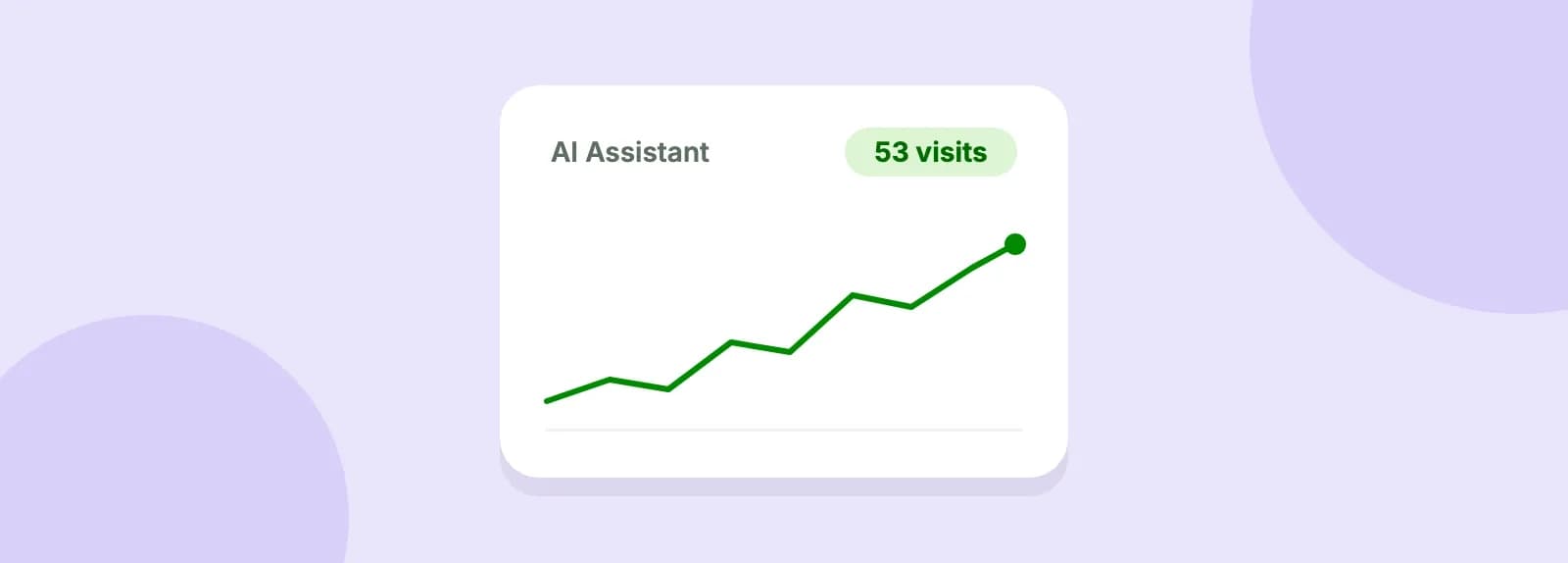

You want to know if ChatGPT is sending people to your site, and Google Analytics 4 (GA4) already tracks this traffic for you. GA4 files visits from ChatGPT, Gemini, Copilot and similar tools under a built-in channel called AI Assistant. Open one report, find that row, then split it by source (the site that sent each visit). It takes about 5 minutes and needs no code.
Before you start
You need access to your site's GA4 property, the part of your Analytics account that tracks this site. Steps 1 to 4 only read reports. Step 5 changes the property's settings, so ask whoever manages GA4 if you can't open Admin.
Two terms come up in every step:
- Channel: GA4's bucket for how a visit arrived, such as Organic Search (unpaid search results), Direct (no known source, such as a typed address) or Referral (a link on another website).
- Source / medium: the site that sent the visit, and the kind of link it was.
Step 1: open the Traffic acquisition report
In GA4, go to Reports → Acquisition → Traffic acquisition. The table groups sessions (single visits) by channel, so each row is one bucket. Use the date picker in the top right to choose a range of a few months.
Step 2: find the AI Assistant row
Look down the first column for AI Assistant. Google defines it as visits from sources like ChatGPT, Gemini, Deepseek, Copilot or Grok.
GA4 decides this from the referrer, the page or app that sent the visitor. When the referrer matches Google's list of AI assistants, GA4 sets the medium to ai-assistant. It also sets the campaign, GA4's label for the marketing push a visit belongs to, to (ai-assistant). No row means GA4 recorded no such visits in that date range, so try a longer one.
Step 3: split the AI Assistant row by source
Click the drop-down above the first column and pick Session source / medium. Then type ai-assistant in the search box above the table. Every row left is one AI tool that sent you visitors.
Here is what that looks like for an example site over 28 days (the numbers are illustrative):
| Session source / medium | Sessions | What it tells you |
|---|---|---|
| chatgpt.com / ai-assistant | 38 | ChatGPT linked to you and people clicked |
| chat.deepseek.com / ai-assistant | 9 | DeepSeek answers link to you too |
| gemini.google.com / ai-assistant | 4 | Gemini, not Google Search |
| copilot.microsoft.com / ai-assistant | 2 | Microsoft Copilot |
In this example ChatGPT sends 38 of 53 AI visits, about 72%. To see which pages those visitors landed on, add a second column with the + next to the column header. GA4 calls it a secondary dimension: pick Landing page + query string, the page they arrived on including anything after a ? in the address.
Step 4: check that the numbers add up
Add up the sessions of your ai-assistant rows. The total should match the AI Assistant row from step 2. If it does, you are reading the right data.
Then turn on Compare in the date picker, choose Previous period and click Apply. A rising AI Assistant row means AI tools link to you more often. A flat zero is worth a look at the section on zero visits below.
Step 5 (optional): build your own AI channel group
The built-in channel is enough for most sites. Build your own group only to rename the channel, or to catch an AI tool that Google's list doesn't cover and that shows up as Referral, GA4's bucket for visits from a link on another website.
- Go to Admin → Data display → Channel groups and click Create new channel group. It starts as a copy of the default group.
- Click Add new channel and name it
AI tools. - Click Add condition group, choose Source and the match type matches regex, paste the pattern below, then click Save channel.
- Click Reorder, drag
AI toolsabove AI Assistant and Referral, then click Apply. - Click Save group. In Traffic acquisition, pick your new group from the drop-down above the first column.
.*(chatgpt|perplexity|gemini|copilot|claude).*
A regex (regular expression) is a text pattern. The | means "or". GA4 matches the pattern against the whole source, so the .* on each side lets the name appear anywhere in it, such as chatgpt.com. It is a loose match, so check the report for sources it catches by mistake.
Step 4 in that list matters. GA4 puts each visit in the first channel whose rule it matches, so a channel left at the bottom catches nothing.
Google's channel groups help page lists three more things worth knowing:
- Custom channel groups apply to your reports retroactively, so old data is sorted by the new rules too.
- A standard (free) property can have 2 custom groups, and a paid Analytics 360 property can have 5.
- Each group holds up to 50 channels.
Where AI visits show up in GA4
Not every visit from AI lands in the AI Assistant channel. This table shows where each kind ends up.
| Where the visitor came from | Where GA4 puts it | Where to look |
|---|---|---|
| A link in a ChatGPT, Gemini or Copilot answer | AI Assistant | Steps 2 and 3 |
| Google AI Overviews or AI Mode, the AI answers Google shows in its results | Organic Search | Search Console |
| A link copied from an answer and pasted into the browser | Direct | Can't be separated |
| A link through a URL shortener or a redirect | Often Direct | Can't be separated |
| A visitor using an ad blocker | Often Direct | Can't be separated |
Google counts AI Overviews and AI Mode as Organic Search, not AI Assistant. To see them, use Search Console, Google's free report on how your site does in Search. Its AI features page says those clicks are included in the overall Search Console traffic, under the Web search type. On Starter and above, UpCrawler's Search Console view shows those clicks next to your site's technical issues.
The Direct rows come from Google's own explanation of direct traffic. A typed or pasted URL, a shortener, a redirect that strips the tracking tags (labels at the end of a link that tell GA4 where it came from), or an ad blocker can all hide where a visit came from. So treat your AI Assistant number as a floor, not a total.
Zero AI visits? Check this first
AI tools mostly cite pages their crawlers are allowed to read. A crawler is the program that reads web pages for a search tool. OpenAI's crawler documentation explains that ChatGPT search relies on its OAI-SearchBot crawler.
Your robots.txt file tells crawlers which pages they may read. A rule in it that blocks OAI-SearchBot keeps you out of ChatGPT search answers, so check for robots.txt errors first.
For Google's AI features, a page has to be in Google's index (its list of pages it can show) and allowed to show a text preview. A stray noindex tag, a line of code telling Google not to list the page, removes it from both. Our post on why a site doesn't show up in ChatGPT answers walks through the other checks.
Want to know whether robots.txt or a noindex tag is keeping AI tools away? Run a free audit and see your homepage's issues in about a minute.
Share it with whoever runs your site’s SEO.